20 Game Challenge Game 1: Pong
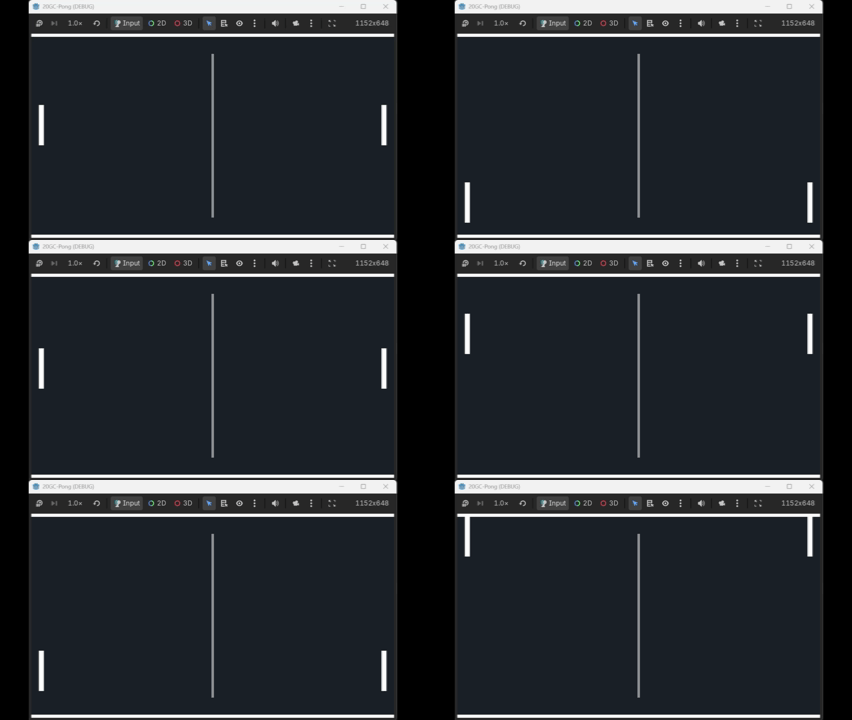
Yeesh, I went and wrote all that and then had issues with deployment, it’s a pain and I’m almost about to give up on this self hosted blog and go to some other easy publish site.
It’s just another Distraction in front of the Game I’m trying to make. It was working locally but breaks in Github builds uuugh and to make it really annoying, I hadn’t changed a thing since I last pushed it - but suddenly all the versions were wrong? Something happened without me knowing. Blarg. for now this is my private blog since the publishing is broken.
Let’s get to building the game: to make it less resistance I’m going to go with Godot, no dancing back and forth between engine choices.
The goal: Pong
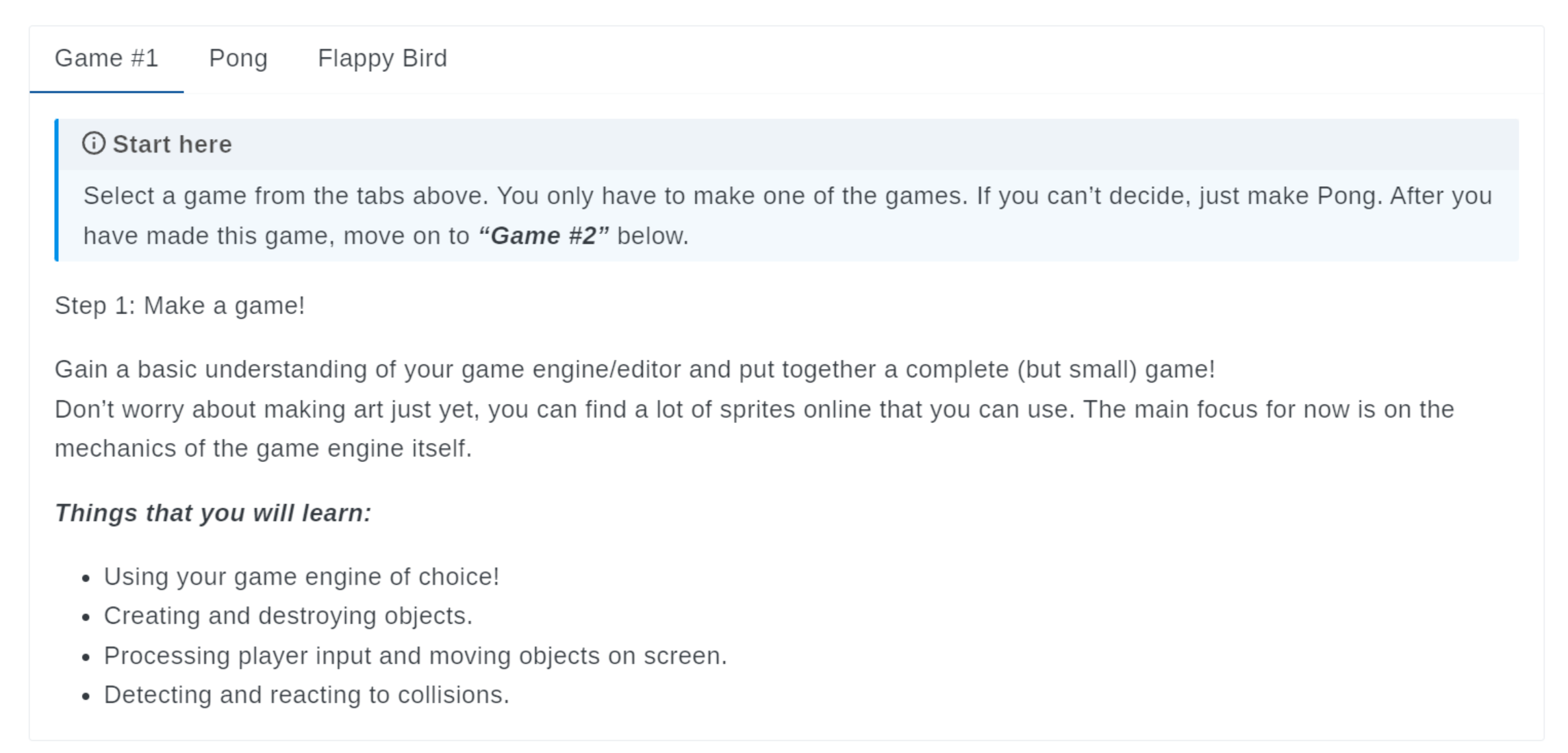
The goal is to gain a basic understanding of the engine of choice. I have made a few things in Godot so I’m sure I have some understanding but this will help me get more familiar.
The learning list pasted here for myself:
- Using your game engine of choice!
- Creating and destroying objects.
- Processing player input and moving objects on screen.
- Detecting and reacting to collisions.
Step 1 is to make a new Godot project, and the game page has a nice easy list of the requirements:
Goals:
- Create an arena with two walls and a divider.
- Add a paddle on either end of the play field. Use player inputs to move the paddles up and down.
- Add a ball that moves around the playfield and bounces off of the paddles and walls.
- Detect when the ball leaves the playfield. Assign a point to the player who scored.
- Track and display the score for each player.
Setup
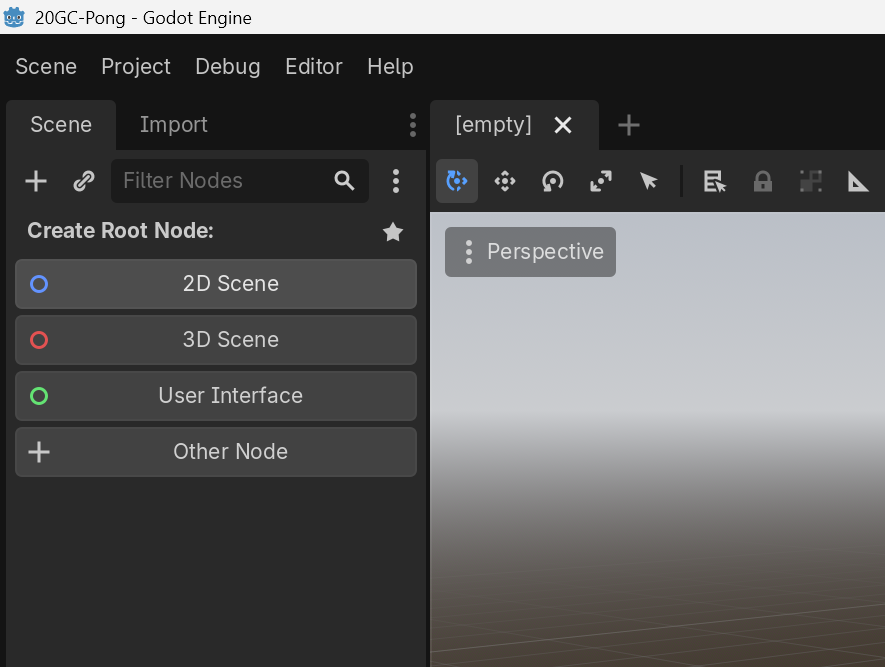
First step in Godot is to choose the Root node for the first scene: 2D.
(As a sidenote I was trying to fix the blog while writing up this part and I got it working so I should be on smooth sailing street for now).
Arena
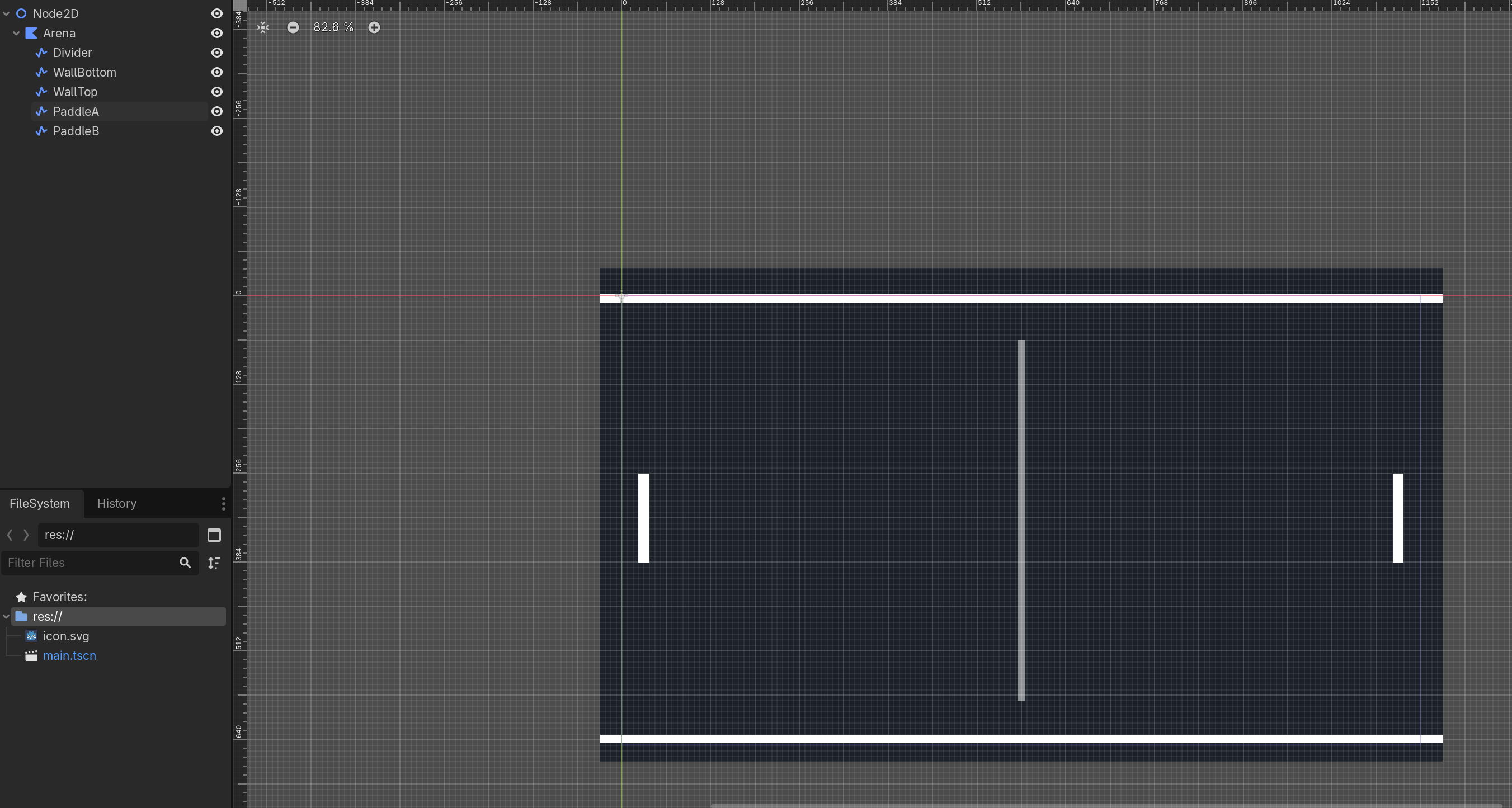
Next step is making an arena with 2 walls and a divider. Godot is all about the nodes so I’ll add some ~Sprite2D~ Polygon2D to represent these.
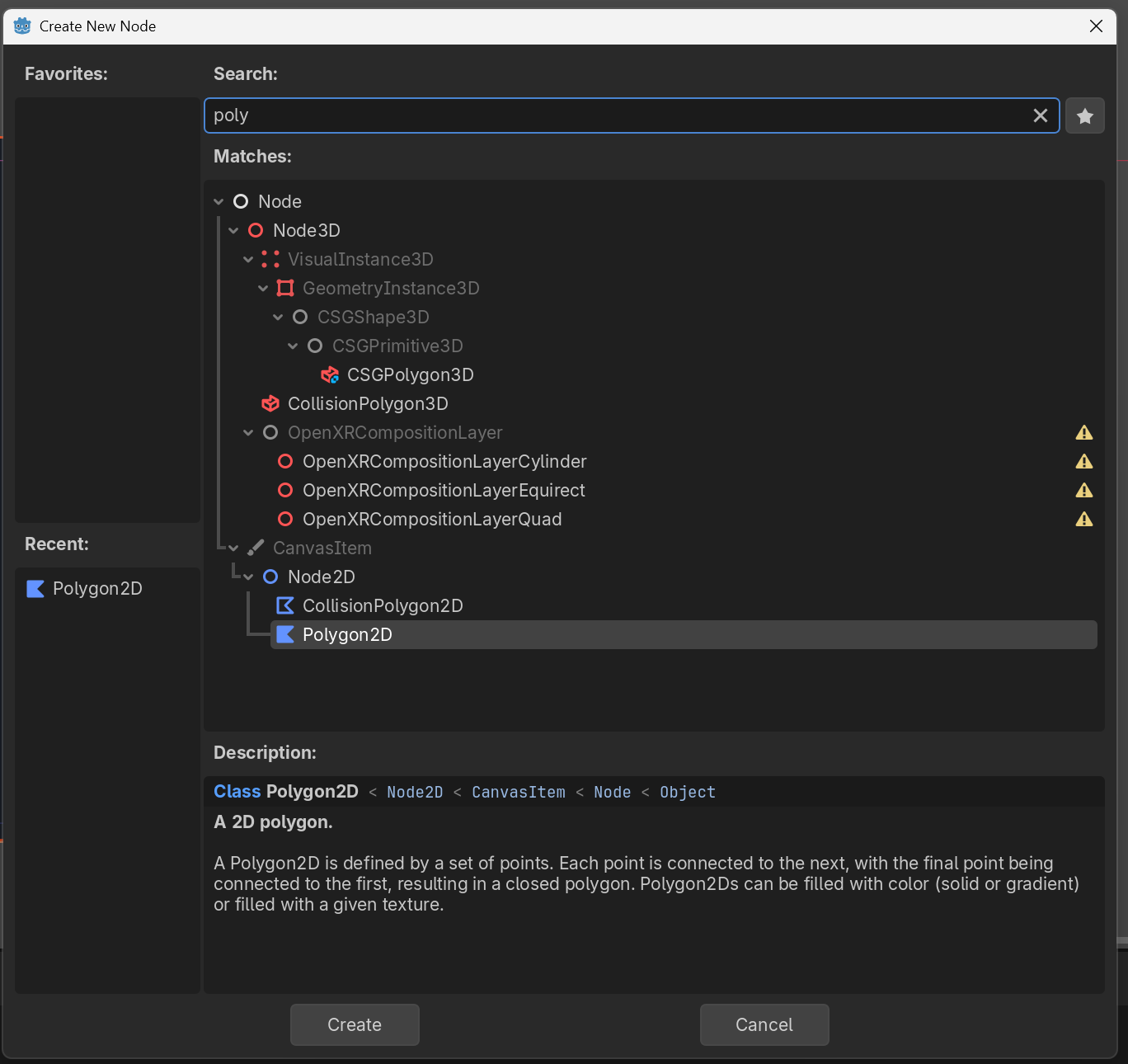
I already needed to look up show to use them because I stared at nothing popping up after I added it.
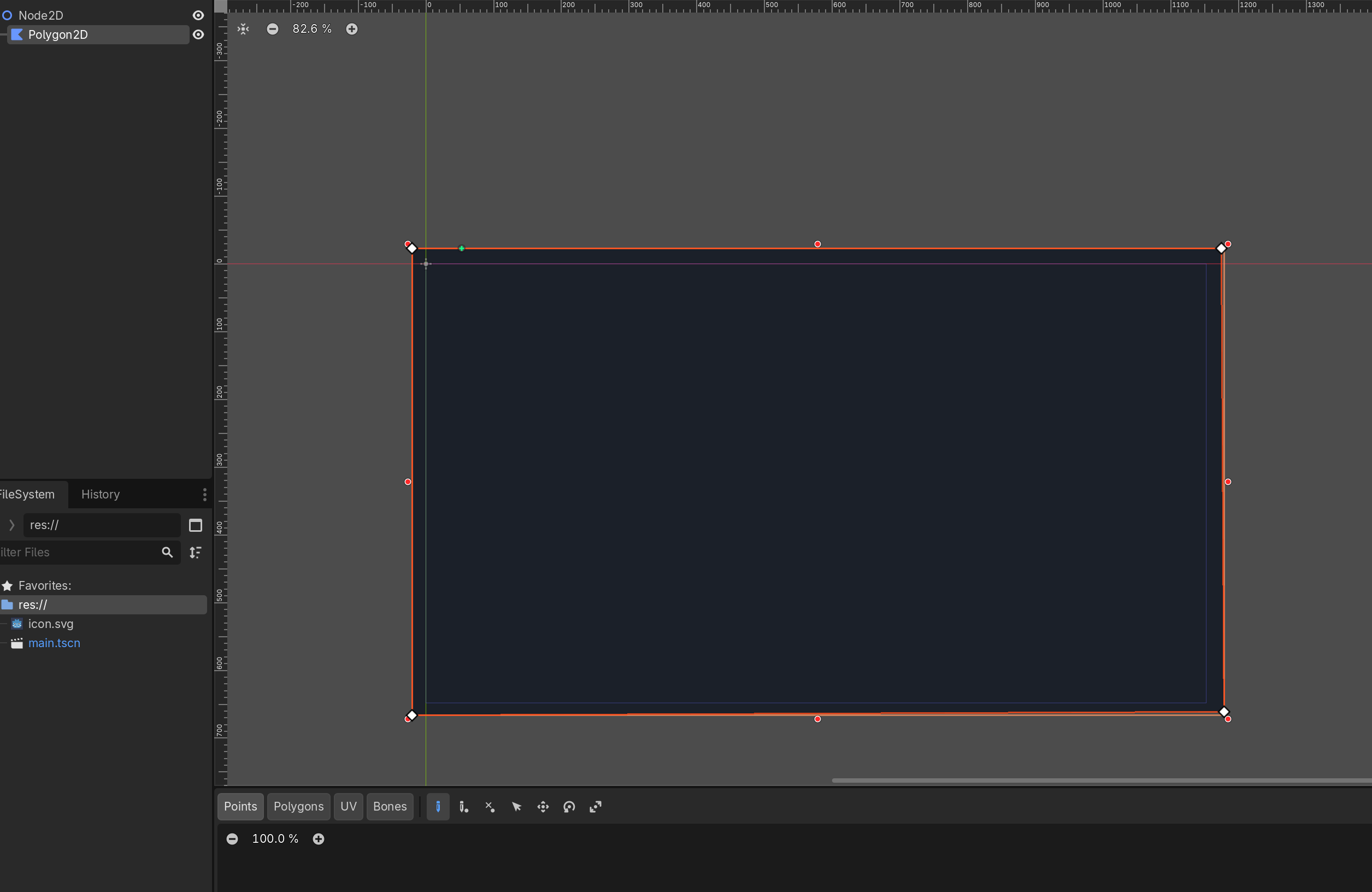
I turned on some grid snapping too so I can make a simple coloured square without having to leave the engine to make an image to be the sprite.
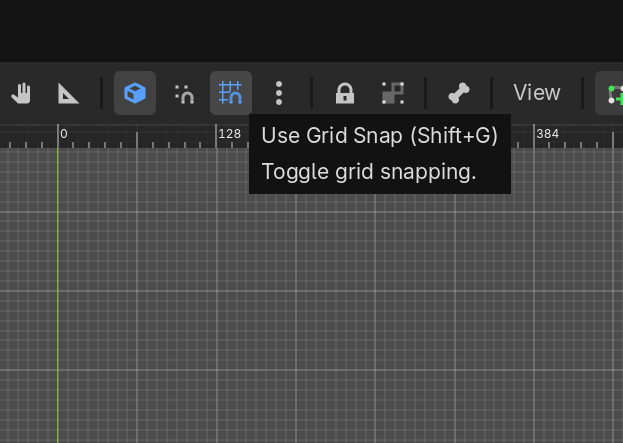
For the divider, I added a Line2D.
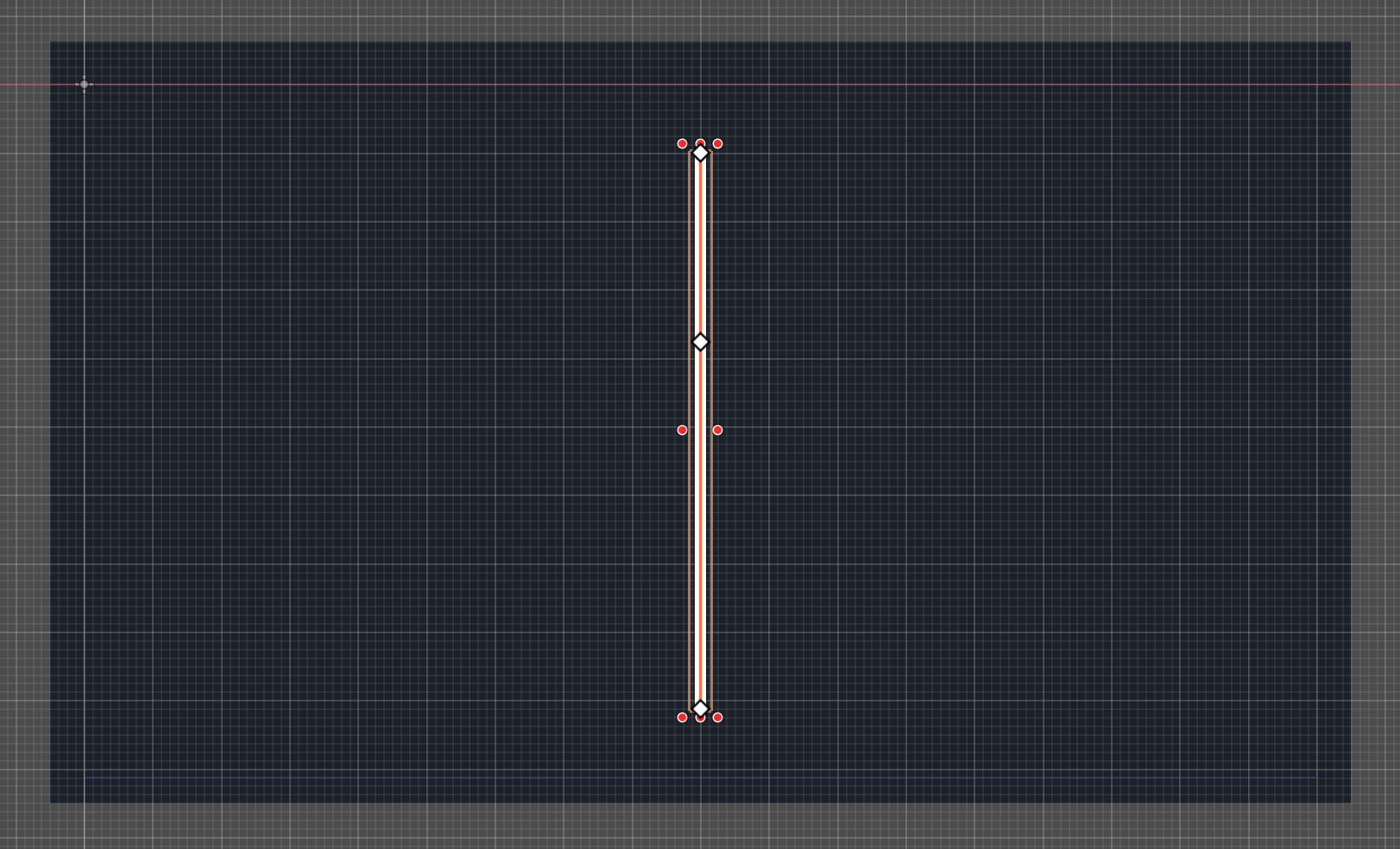
Oddly enough the instructions saw add 2 walls and a divider. The divider is clear to me, but the 2 walls? Do the walls go behind the paddles? or along the top and bottom? This isn’t something that matters that much so I’m just going to make the walls on the top and bottom to collide with the eventual ball.
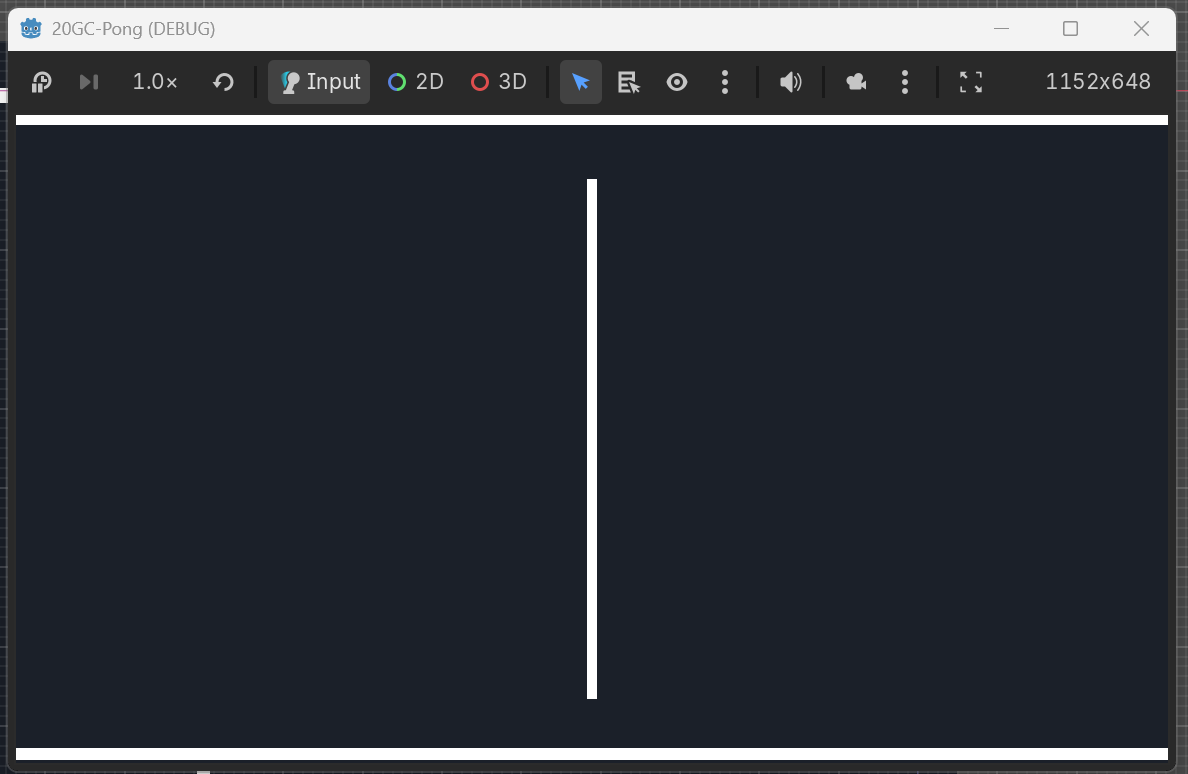
Isn’t she a beaut? Alright, onto the next step: paddles. Added more lines for these:
Moving Paddles
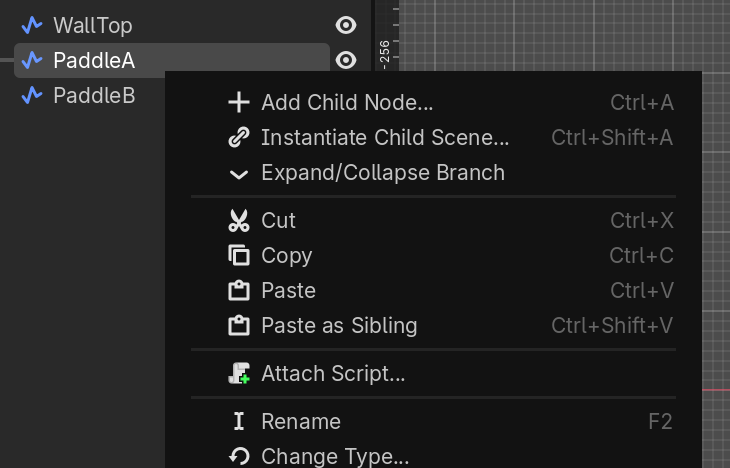
And then I have to let player input move at least one up and down. Time for scripting! The way I know to add code to a thing in Godot is to right click the node and click on attach script:
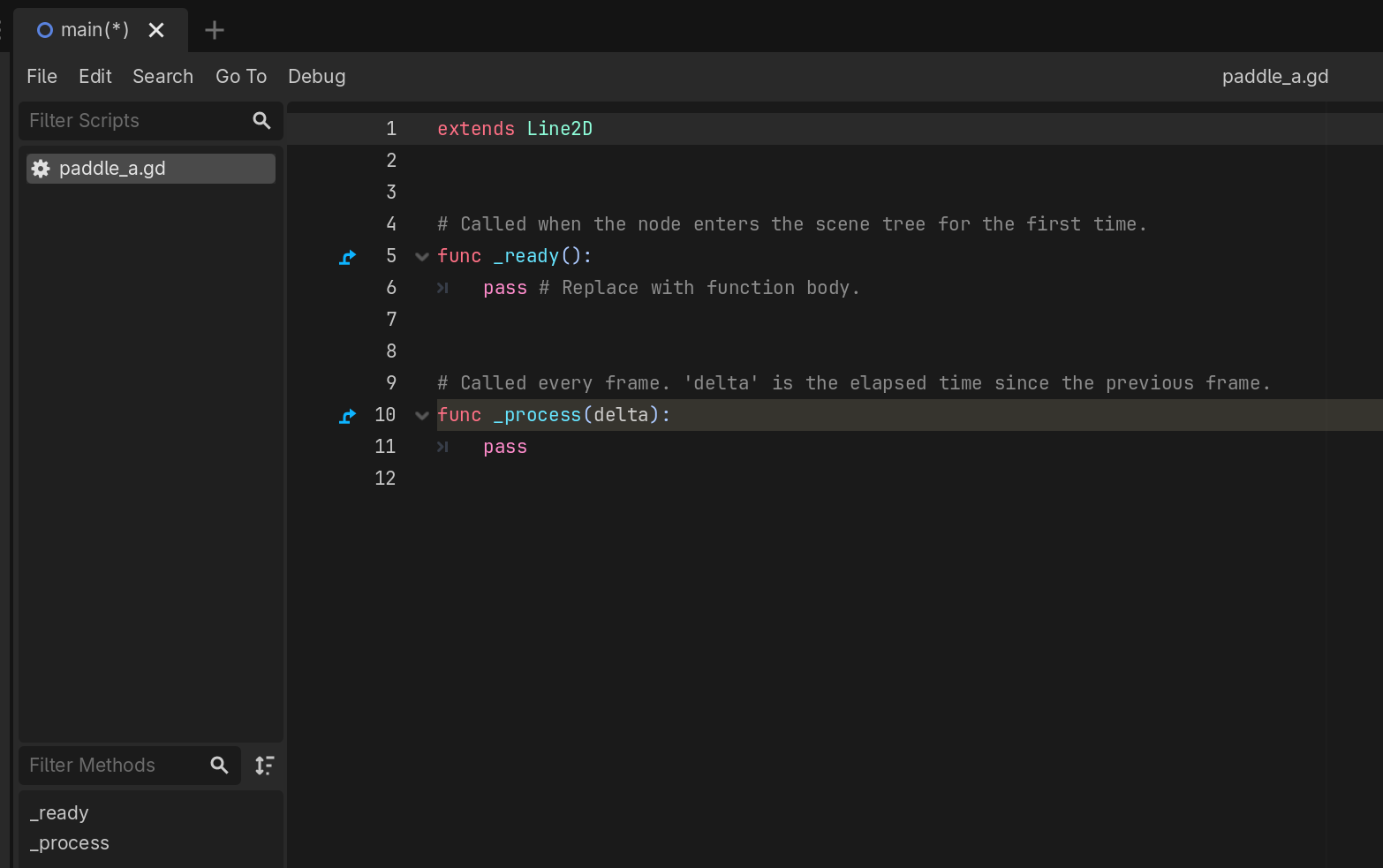
Here I face the empty script, this is another time I will have to consult some docs or guides: How to get player input from Godot?
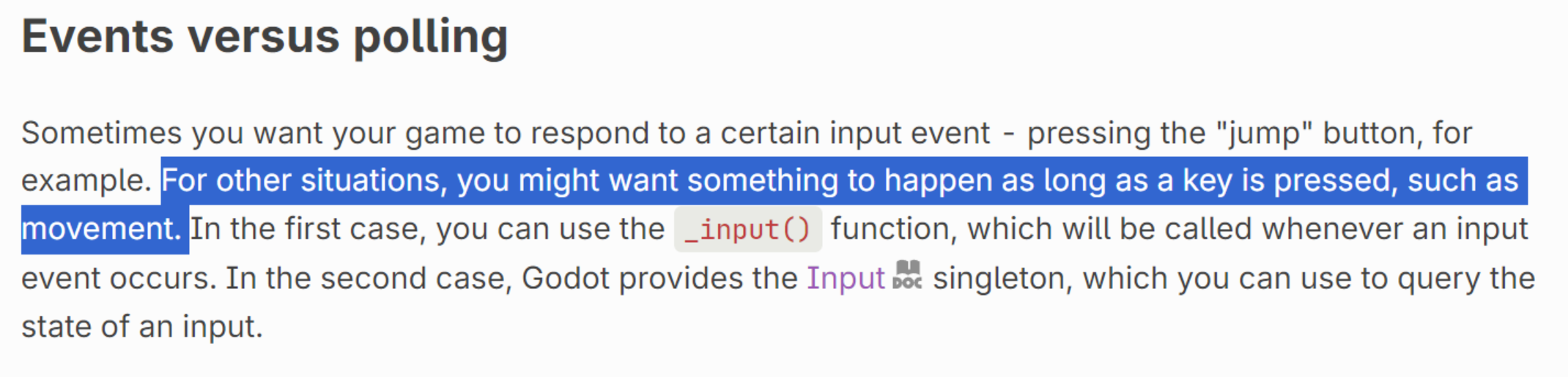
Looks like there are some docs about it. Looks like what I want is the polling rather than the event because it will be holding up or down.
Luckily someone had a great simple example here, which I’ve thrown in, changed do_your_thing() to a print() (and also had an issue where the tab and space difference gave me an error so I used CTRL + SHIFT + I to convert spaces to tabs. Its CTRL + SHIFT + Y for the other way around.)
Aaaand we have liftoff!
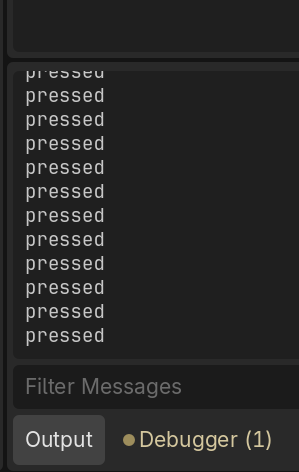
It’s an arbitrary key, but it’s being detected and that’s what matters now. I can now test for up and down, and it works:
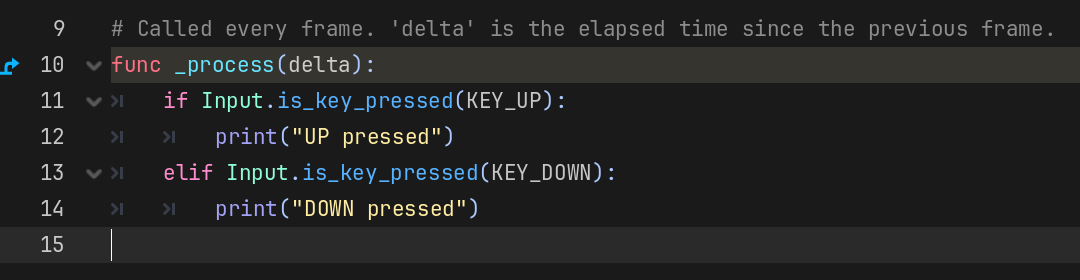
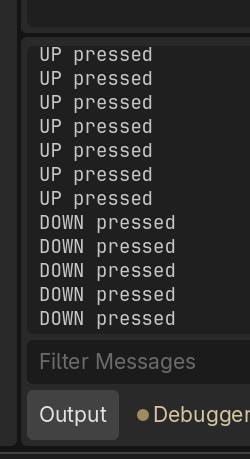
Now to actually move the paddle - I assume you just change the transforms but I’m gunna have a look at the docs in case there is some better way. Seems like Godot has a lot of simple examples and this is one of them. The have the handy tip to export the velocity, soemthing I only thought to hardcode and perhaps I should get into the habit of exporting values as a default? Just so I can change it while the game is running.
After reading a bit though, I think I want to do the simplest thing - most guides are expecting physics but I just want to move something up and down at a fixed speed for now.
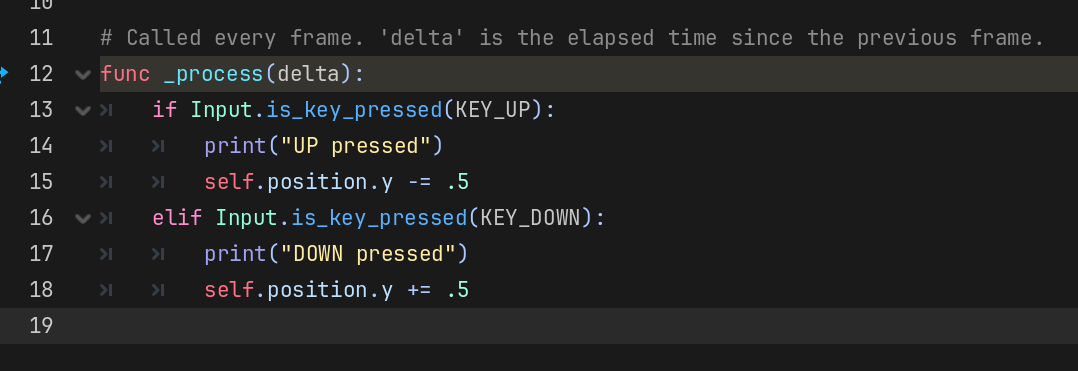
The gif is jittery but it is moving up and down smoothly in reality:
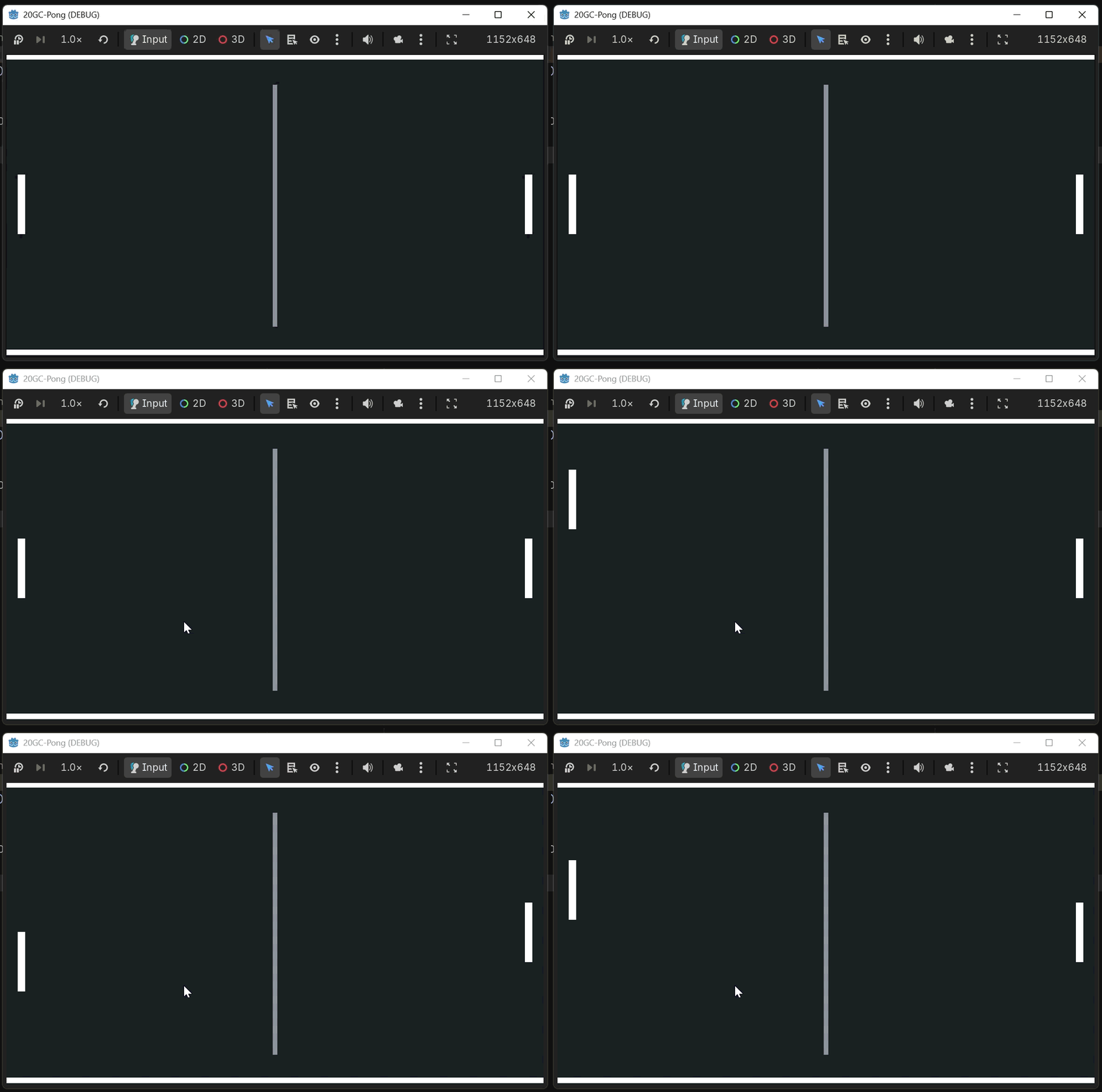
I decided to attach the same script to the other paddle so I can move the other at the same time for now. It’s time to add the ball! At this point my mind is racing with but what about the collisions and all this extra stuff but I’m going to tackle one thing at a time. Add the damn ball.
Adding the Ball and Colliders
I have 2 things to figure out: how to make the visible circle (maybe I just need a sprite) OR I can make it simple a square - and 2, add the collider? Rigidbody? Do I need both? My understanding is that the collider is the thing that detects collision with other objects and then you need a something else to handle the movement since this isn’t being moved by player input.
I did at this point decide to add a paddle space limiter so they cant go off screen and first thought I needed to add colliders, but instead opted for something more simple: if they are past a certain position don’t let them move:
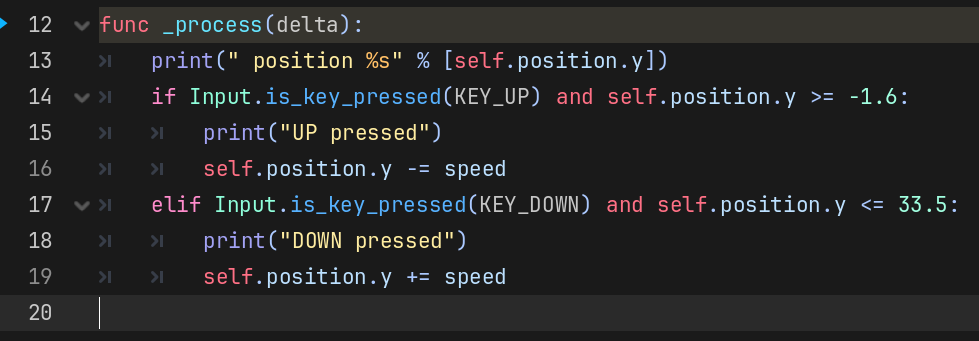
Works like a charm and I didn’t have to do much. I think in the same vein I’m going with a square ball - it doesn’t need to be more complicated than that, just a small object that can bounce against stuff.
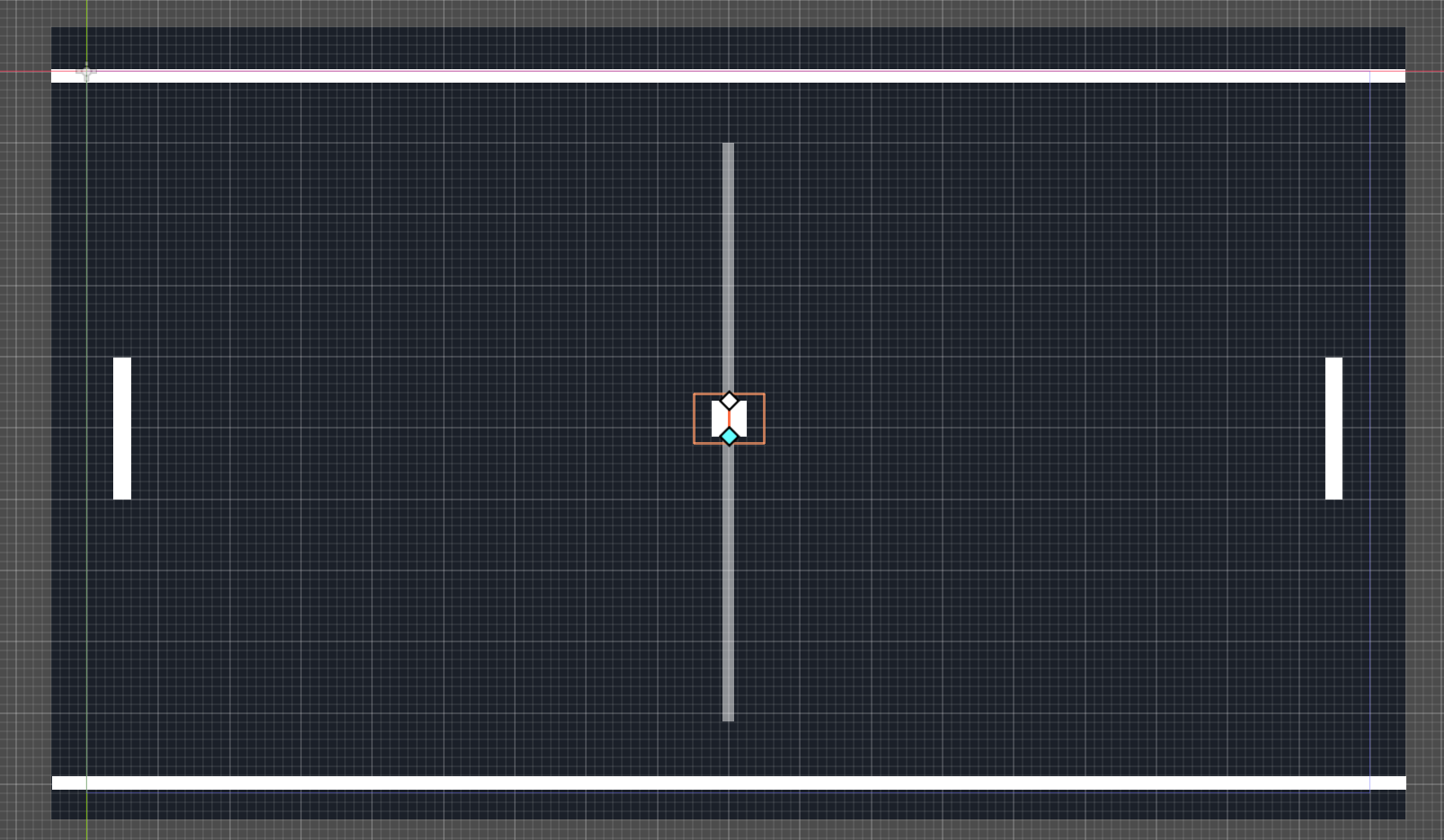
Back to the question at hand: what do I need to have a moving object that can collide with stuff? This page seems to be a good intro.
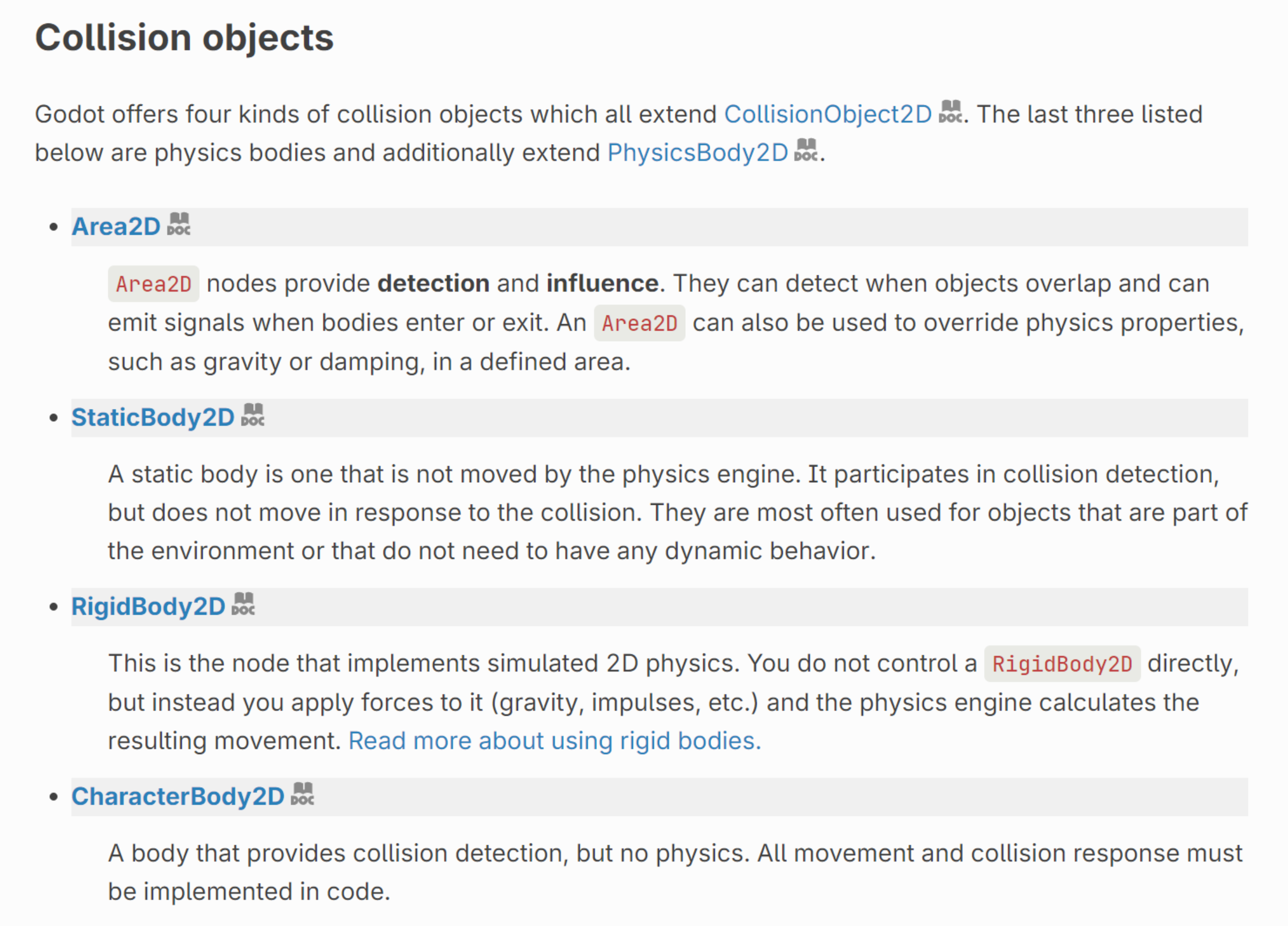
Based on these descriptions it seems like I want StaticBody2D for the walls, a RigidBody2D for the ball, and a CharacterBody2D for each of the paddles. These are all called collision objects. They need a collision shape inside of them in order to have known areas to collide with other collision shapes. Do I put the sprites inside the Collision objects? Or the collision objects inside the sprites? Seems like I’ve seen a parent generic Node2D holding them at the same level.
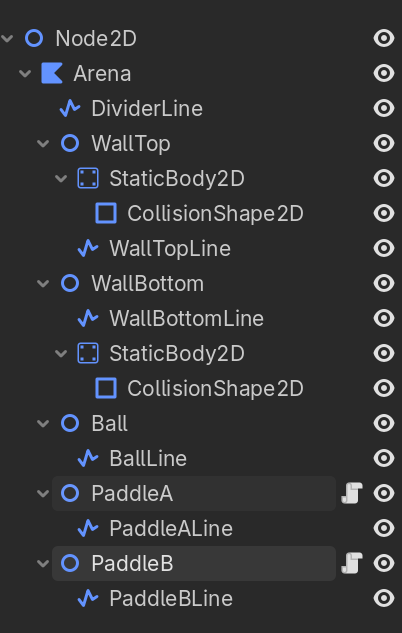
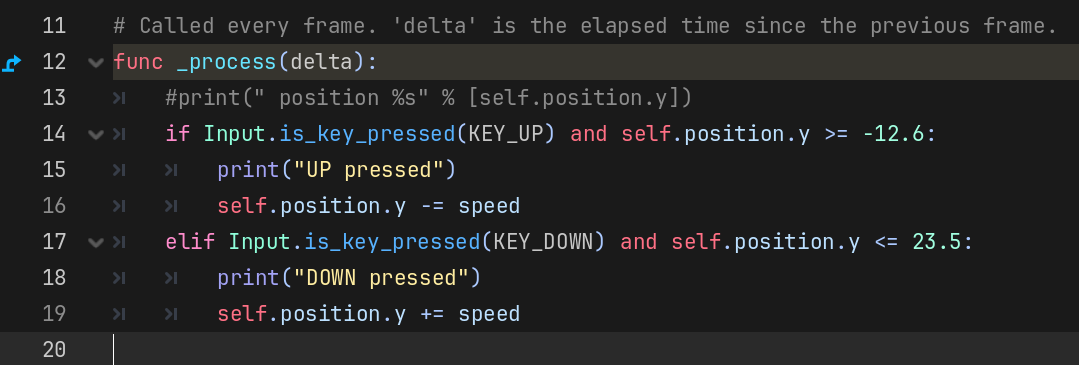
I’ve updated the hierarchy and needed to adjust the code a tad because the positioning of the parent node affected the stop points on the paddles - I had to put the script on the Parent node and not the sprite too. I also know to use a Node2D instead of a Node if I want access to position on it!
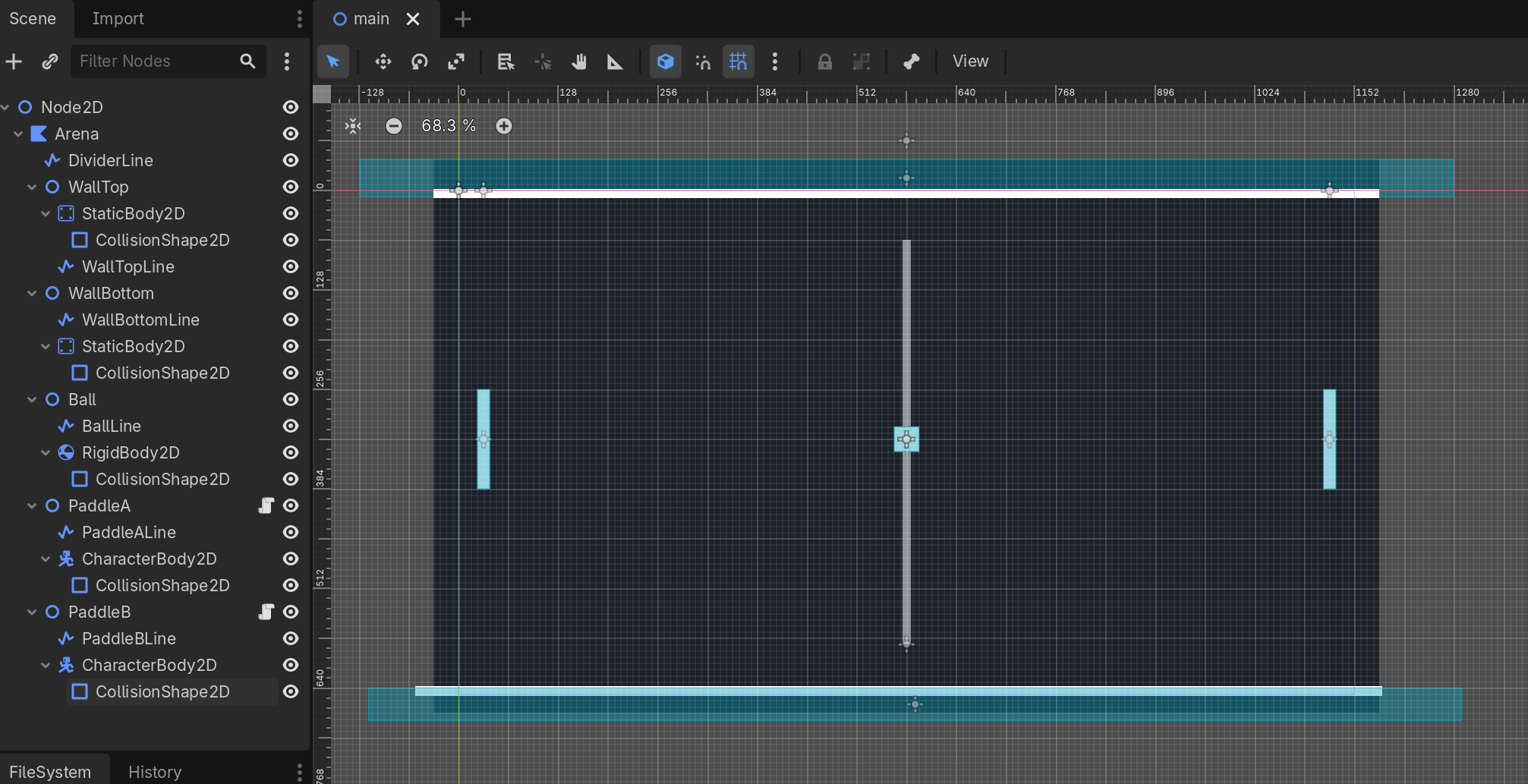
And here they all are set up as I planned. I don’t know if they will work but I’ll do things one at a time. I’ve also added some areas for the ball to go off the screen for losing/winning. This next part is probably the tricky part: setting up colliders (and maybe I can remove the limits on the paddles if they just collide with the top and bottom walls).
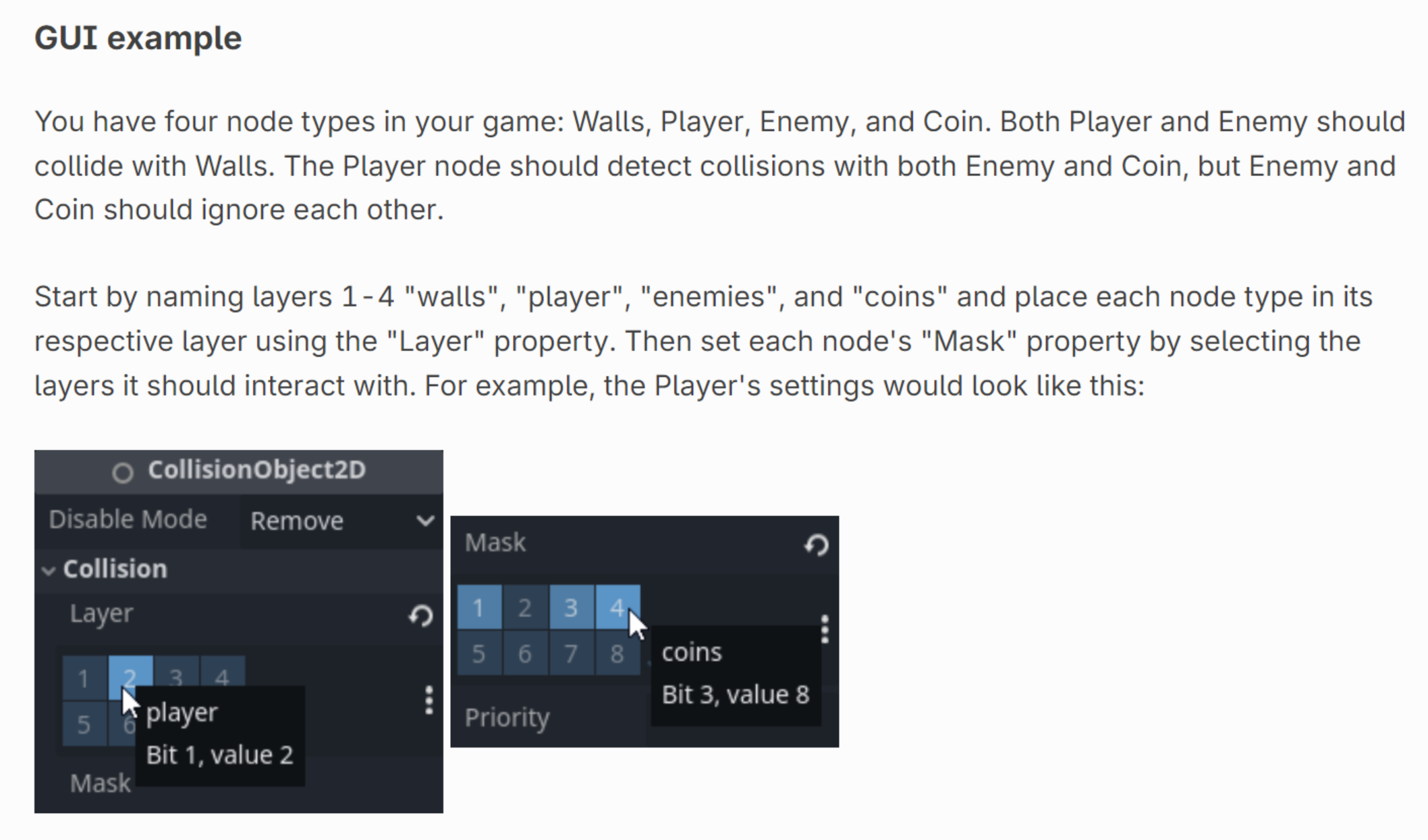
It took a bit of slow reading but I think I’ve got it. It’s good to have this in a simple setup instead of half understanding and not getting it.
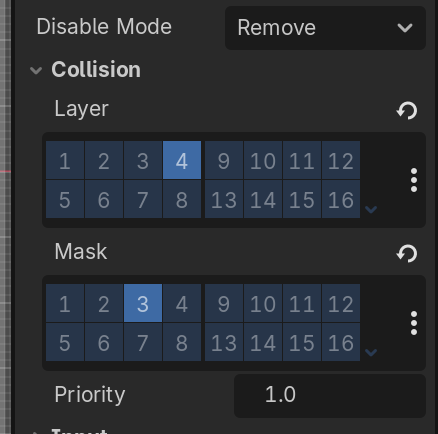
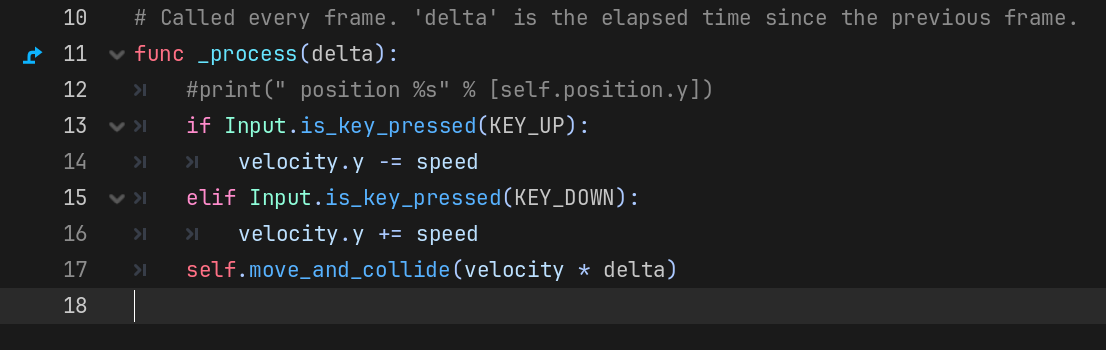
This next bit is tripping me up. I was trying to apply a force to the Ball’s Rigidbody but it just falls off the screen immediately after entering the scene. I think I have to try to get the paddles to collide with the walls first, just to see a collision happen without the physics for now. I don’t know if I’m imagining it or not but the docs became more vague at this point? Maybe because they only have examples of a platforms character sliding around on the ground. I managed to swap out the movement code with their built in move_and_collide().
…but there was an issue where the paddles “stuck” to the walls they hit, because they still had velocity pushing into the walls that haven’t been dampened yet I assume. I added a bounce based on the docs example and it’s a lot better:
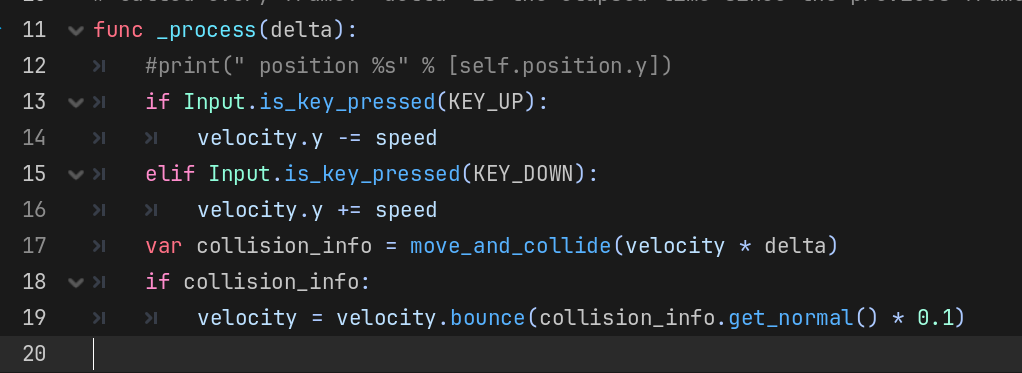
Now there’s a bit of speed/drag/challenge to positioning yourself in the right spot.

I now have a working example in my game that has an object colliding with another! Now to figure out the ball. I think first step is to stop if falling off the screen. I don’t remember when it started happening - it probably was when I added a Rigidbody2D to it - I’ve seen object fall off the screen when adding Rigidbodies in Unity before. But it doesn’t seem like it wants to collide with the bottom wall - maybe because it’s moving too fast.
Fixing this weird bug
For good measure and to check if this is going to happen regardless, I added a new rigidbody and line2d to see if it behaves the same way.
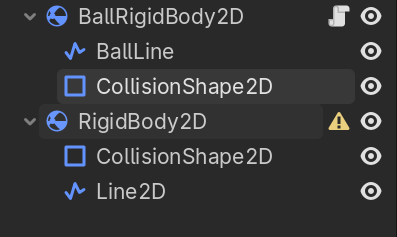
It actually behaves how I would expect it to and not how the first ball does - falling slowly and colliding. I don’t know what’s wrong with the first ball I made.
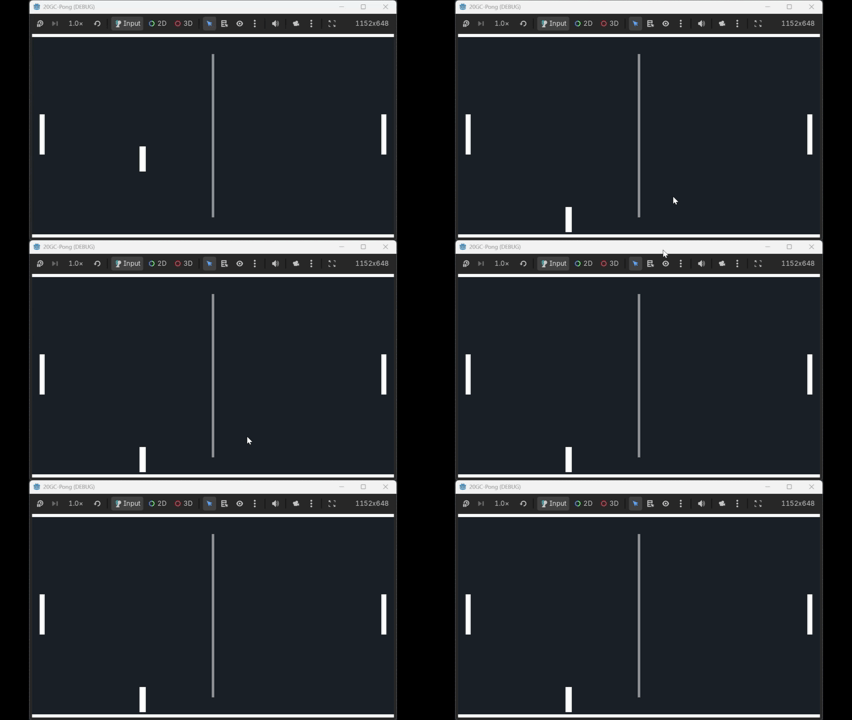
I think if I try too hard to investigate here it will drive me a bit mad. I did a bit to move hierarchies around and didn’t document everything I did, so I could not retrace my steps. So I’m moving on with the working one. One thing I have noticed is that the Line2D’s width on the old one says it’s 0.45px, and on the new one to look the same it’s 32px. Off by almost a factor of 10? Weird.
And the when I check the scale on the rigidbody (which it tells you to keep the scale at 1 with) – what? It’s like 0.017?
OH GOD I decided to follow it because I somehow replicated it. It’s because he encapsulating Arena node is scaled up:
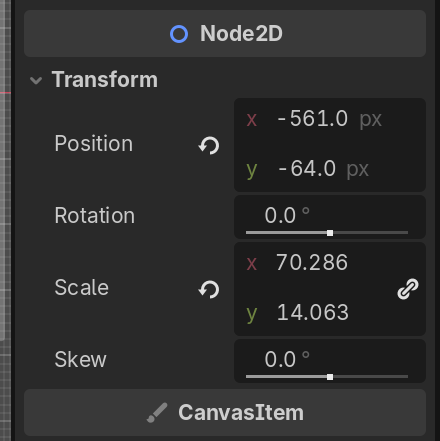
So when I move the object into the Arena it scales itself accordingly so stay visually the same size inside the upscaled object. Cool feature, but it was happening invisibly and could have been a major pain to figure out if I didn’t notice it. I’m pretty glad I did because now I’m going to be watching like a hawk for this. What was happening was the tiny scaled Rigidbody was scaling back up when hitting play, therefore the ball was colliding with everything and probably being shot out in a direction off screen. There were warnings that a scaled rigidbody would be overridden in game and now I understand it.
Balls moving right
I went through and moved everything out of the Arena node and fixed the scaling on all the test Rigidbodies I made and now they all work as they should - falling slowly to the bottom edge and colliding:
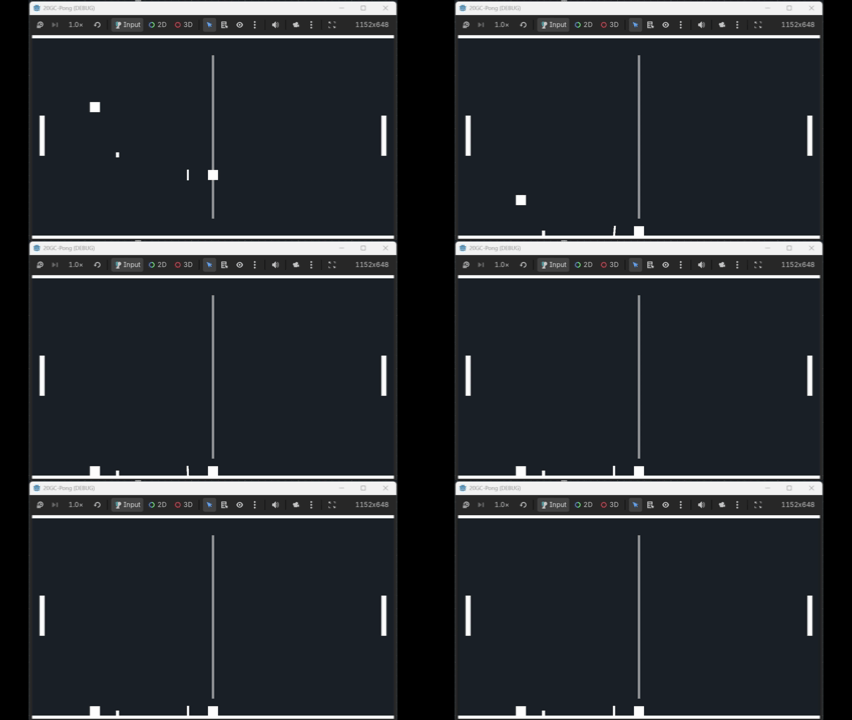
I can now delete all the extras. I was planning to not dig into it but it ended up blocking me from moving forward so I had to figure it out haha. And the apply_central_force() I tried earlier is doing what I expected: moving it, even though its not exactly what I want.
It’s 10:44pm now, I think I’ve been at it since 4:30ish. I’ll do some more tomorrow, it should be easy enough to finish.